

When you want to store and share Web Components across machines for re-use by other developers, you can use a Component Exchange that you create in Oracle Visual Builder Studio. Oracle Visual Builder Studio (VB Studio) is a development platform providing an end-to-end solution for your application development needs. The Component Exchange allows developers to share and reuse components across different projects. In this blog post, we’ll walk you through setting up a Component Catalog in VB Studio.
For this post I will assume that you have access to the drawingpad component that was created in the previous blogpost. From there on it is pretty straightforward to add it to the exchange and re-use it in a Visual Builder application
Step 1: Accessing Oracle Visual Builder Studio
To access VB Studio, log in to your Oracle Cloud account, navigate to the dashboard, and select Visual Builder Studio from the list of services. If you don’t see it listed, you may need to activate it for your account.
Step 2: Setting up the Component Exchange
You would typically need to set up a dedicated project to specifically host a Shared Exchange. Although every project within Oracle Visual Builder Studio has a private Component Exchange instance, the Shared Exchange makes uploaded components accessible to other developers. You can use the same project in your Shared Exchange to host the source code repository of your components. The steps listed below are straightforward. I left out screenshots for the sake of clarity:
- Create a new project in Oracle Visual Builder Studio.
- Select the Initial Repository template for the new project.
- Leave the defaults settings unchanged or, optionally, select the settings for importing your component source code and click Finish.
- In the project provisioning screen, verify that Component Exchange is one of the services being created.
Once the project is created you can obtain the correct URL for use with the Oracle JET tooling to access the Shared Component Exchange.
Step 3: Adding a Component to the Catalog
When you want to store and share your Components across machines for re-use by other developers, you can use the Oracle JET CLI (Command-Line Interface) to configure access to a Shared Component Exchange defined in Oracle Visual Builder Studio. To publish components to a Shared Component Exchange there are a couple of steps.
First you must obtain the URL to the Shared Component Exchange that you can use to configure Oracle JET tooling. If you copy the URL that you would use to clone the GIT repository, you can work from there:

Using the copied URL, remove the user name prefix (for example, john.doe@example.org@) and remove elements from /scm onwards to obtain a root of just the project, similar to this.
Next, append /compcatalog/0.2.0
Configure Oracle JET tooling to access the Component Exchange project by running the ojet configure command in the Oracle JET CLI. Set the --exchange-url flag on the command to pass the Component Exchange URL you obtained.
ojet configure --exchange-url= <the url created above>/compcatalog/0.2.0In the Oracle JET CLI, publish a component to the configured Component Exchange by running the publish component command (line 1 in the sample below):
Lucs-MacBook-Pro:DrawingPadDemo lbors$ ojet publish component drawingpad-component
Running before_component_package hook.
Component 'drawingpad-component' was archived.
Running after_component_package hook.
Publishing 'drawingpad-component'.
Preparing 'drawingpad-component' file(s) for the upload into Exchange.
'drawingpad-component_1-0-1.zip' file is ok.
All 'drawingpad-component' files prepared.
Uploading 'drawingpad-component' into Exchange.
Using project Exchange configuration.
'drawingpad-component' was uploaded into Exchange.
Success: Component 'drawingpad-component' was published.
Lucs-MacBook-Pro:DrawingPadDemo lbors$
With that, our drawingpad component is published to the component Exchange. We are ready to use it in an application now.
Step 4: Using a Component from the Catalog
For using the component in an application, I will assume that you have a Visual Builder application prepared. If not, you can easily create one by following these steps: How to develop a Visual Builder Application
Once you have that application openend, you can now simply open (1), search (2) and install (3) your component, by following the steps depicted in the image below:
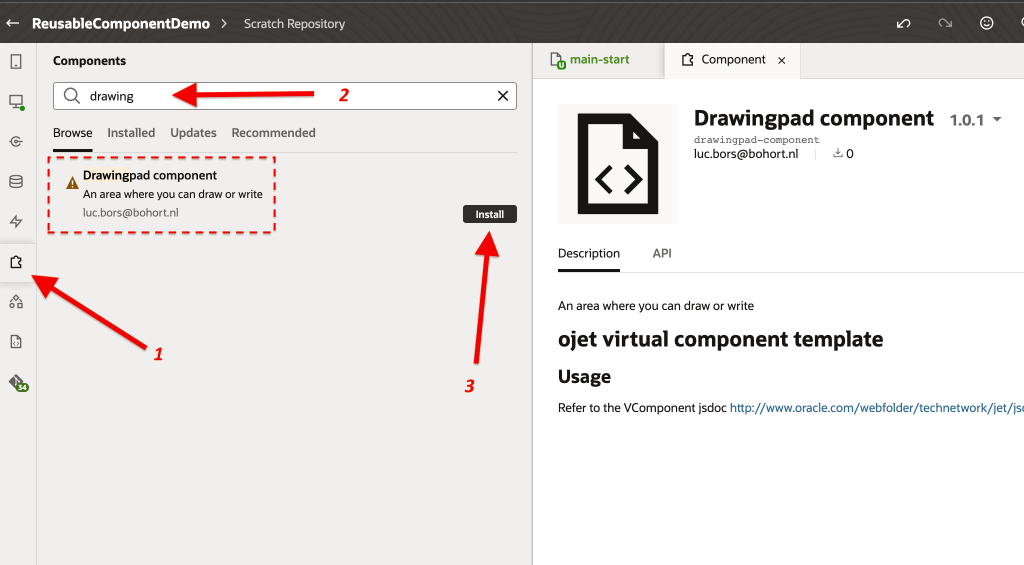
After installing the component, it is just one more simple step to use it. Simply search for it and drag-n-drop it on your page. When you run the application now, it should contain the component that was created, packaged and published to the Component Exchange. Have a look at the video below to see the result:
Conclusion
The Component Exchange in Oracle Visual Builder Studio promotes reusability and collaboration, making it an essential tool for modern development teams. By following the steps outlined above, you can set up your own Component Exchange and streamline your application development process. Happy coding!